Deadline Bar Free vs Pro: what you get, and which to choose
Compare the free version and Pro: room for deadlines, Focus, groups, Reminders and Calendar, and themes. See when to stay free, and what happens if Pro ends.
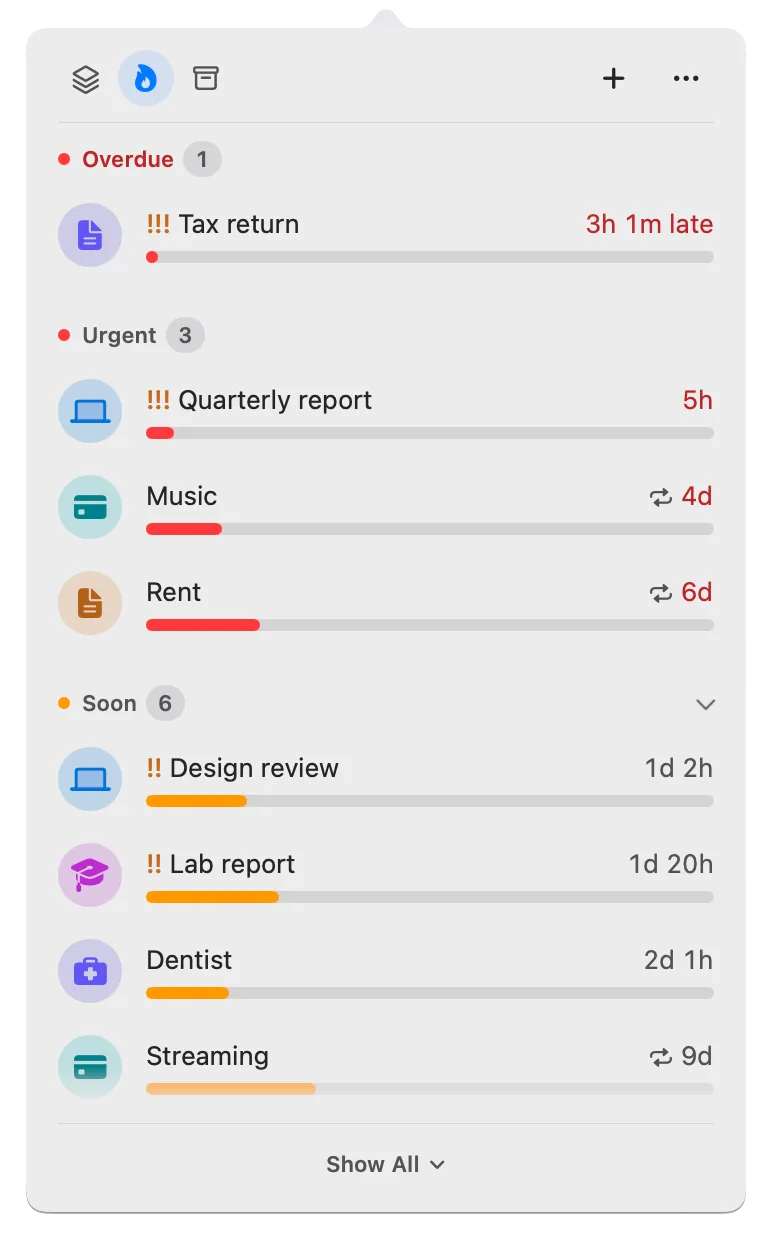
If you track a handful of dates, such as the rent, a subscription renewal, and a trial that ends next week, the free version of Deadline Bar is enough, and it doesn’t expire. It even includes Focus, a timer for working on one deadline with breaks. Pro is for when you have more than five unfinished deadlines at once, want a group for each client or course, or keep your deadlines in Apple Reminders and Calendar already.
Deadline Bar is a Mac app that keeps your deadlines in the menu bar at the top of your screen, with the time left on the most urgent one. Click it, and the panel (the list of your deadlines) opens under it, most urgent first, in green, yellow, and red. This guide is for anyone deciding between the free version (Free, from here on) and Deadline Bar Pro: it compares them by the job you need done, and says what happens if Pro ends. The App Store shows Pro’s price in your currency before you pay; the yearly plan starts with a 14-day free trial.
Which plan fits the work you have
The right plan depends on how much is due at once and what you need from the app. Pick the line that sounds most like you.
- You watch a few dates. A renewal, a free trial, the rent, a passport. Free covers this, including a notification before each due date and repeats for what comes back.
- You juggle many commitments at once. A semester of assignments, three clients, a release with milestones. Free’s five deadlines fill up in a week or two, so Pro’s unlimited list helps, and groups of your own keep each client or course apart.
- You need to sit down and finish something. An essay, a proposal, a report you keep putting off. Focus times a session on that one deadline, with breaks, on Free too; Pro lets you choose any length and your own rhythm of breaks.
- You plan work that shouldn’t start yet. A project that begins next month. A start date keeps it out of your list until then, on either plan.
Three made-up people show where the line usually falls:
- Maya, a student with four courses. Each course sets an assignment or two a week, plus a midterm, so by the second week she has eight things due. Pro fits her: room for all eight, a group per course, and Focus on the essay she keeps avoiding for as long as she chooses. The student guide shows a Free setup too.
- Sam, a freelancer with three clients. Each client has a delivery and a round of revisions, and the dates move. Pro fits him: a group per client, with defaults so each new deliverable starts with the 2-day reminder he always sets. See deadlines for freelancers.
- Lee, who tracks renewals. Rent, a streaming service, a domain, and car insurance make four repeating dates. Free holds them, with room for one more deadline, such as a trial that ends next week. Lee decides only when a sixth thing comes along: stop tracking one, or move to Pro. The bills and renewals guide walks through this setup.
If none of these sounds like your week, there’s nothing to decide yet. Start on Free.
What Free and Pro each do
Free is a complete tracker for up to five unfinished deadlines at a time, with no end date. Pro is the same app with that limit gone, plus tools for planning ahead, doing the work, and looking back. This is the whole difference, row for row as the app shows it in Settings → About → Compare Free and Pro:
| What you get | Free | Pro |
|---|---|---|
| Deadlines (unfinished, at once) | 5 | Unlimited |
| Built-in groups | Yes | Yes |
| Groups of your own | No | Unlimited |
| Quick Add from any app | Yes | Yes |
| Sorted by urgency, with reminders | Yes | Yes |
| Repeats | Yes | Yes |
| Start dates | Yes | Yes |
| Focus sessions with breaks | Yes | Yes |
| Any Focus length and rhythm | No | Yes |
| Group defaults | No | Yes |
| Reminders and Calendar in the list | No | Yes |
| Share My Month (a picture of the deadlines you finished in a month) | Yes | Yes |
| Medals and Pro Card (badges for habits, and a card that shows your plan) | No | Yes |
| Pro themes for the panel | No | Yes |
(To open Settings, click Deadline Bar in the menu bar, click ⋯, and choose Settings…, or press Command-Comma⌘,.)
What Free includes
Free isn’t a trial: nothing in it switches off after a few weeks. It holds five unfinished deadlines at a time, with everything you need to finish them:
- Quick Add from any app with Control-Option-D (Control-Option-D⌃⌥D): type a name, pick a day, and it’s in your list.
- Two kinds of deadline. A Task is work you spread over its time, like a report; by default it turns yellow with 30% of its time left (counted from the day you added it), and red with 10%. A Date is a day you only watch, like a renewal; it turns yellow with 30 days or fewer left, and red with 7.
- Reminders before a deadline is due, as a macOS notification.
- Repeats for whatever comes back every week, month, or year.
- Start dates, for work that can’t begin yet: until its start, a deadline waits under Scheduled, on the Scheduled & History tab (the archive box at the top of the panel), out of your list and menu bar.
- Focus, a timed session on one deadline: 25 or 50 minutes, 1 hour, or Until Due, with a 10-minute break after each 50 minutes of work. Your other deadlines keep counting down. The timeboxing guide helps you choose a length.
- The built-in groups: Subscriptions, Bills, Work, and Study, plus Personal, which holds any deadline without a group. Subscriptions and Bills keep a price and add up what a group costs a month.
- Three panel themes: System, Graphite, and Midnight Navy.
- Share My Month, a picture of a month’s finished deadlines, once you’ve finished three this month or last.
What counts toward Free’s five
The five are your own deadlines that aren’t finished yet, and each one takes a place. Finishing a one-off deadline frees its place; finishing a round of a repeating one doesn’t.
- A one-off deadline you mark done moves to Completed, your history, and its place is free.
- A repeating deadline you mark done moves on to its next round. It’s still unfinished, so it keeps its place: five repeating bills fill Free by themselves.
- The examples the app adds on first launch don’t count until you edit one. Then it’s yours and takes a place.
What Pro adds
Each Pro feature replaces something you’d otherwise work around by hand:
- Room for everything that’s due. No limit on unfinished deadlines, so the week you have twelve things due, all twelve are in the list.
- Groups of your own, one per client, course, or project, each with its own name, symbol, and color.
- Group defaults save retyping: open a deadline in one of your groups with Edit… and click Save as Defaults for followed by the group’s name; that group’s next deadline starts with the same choices. The built-in groups keep their own fixed defaults.
- Focus your way: any length (2 hours, or Custom… from 5 to 240 minutes) and any rhythm of breaks, such as 15 minutes after each hour, 20 after 90 minutes, or no breaks at all.
- Reminders and Calendar in your list: your Apple reminders that have a due date, and events from the calendars you pick, sorted with everything else and outside any limit.
- Three Pro themes: Violet Dusk, Cream Paper, and Lilac Frost. A theme changes the panel’s colors only; the urgency rules and the layout stay the same.
- Medals and the Pro Card in Settings → About: medals for deadlines finished on time, renewals caught, hours in Focus, and more, counted from what this Mac recorded. They’re a record for you, not proof of anything.
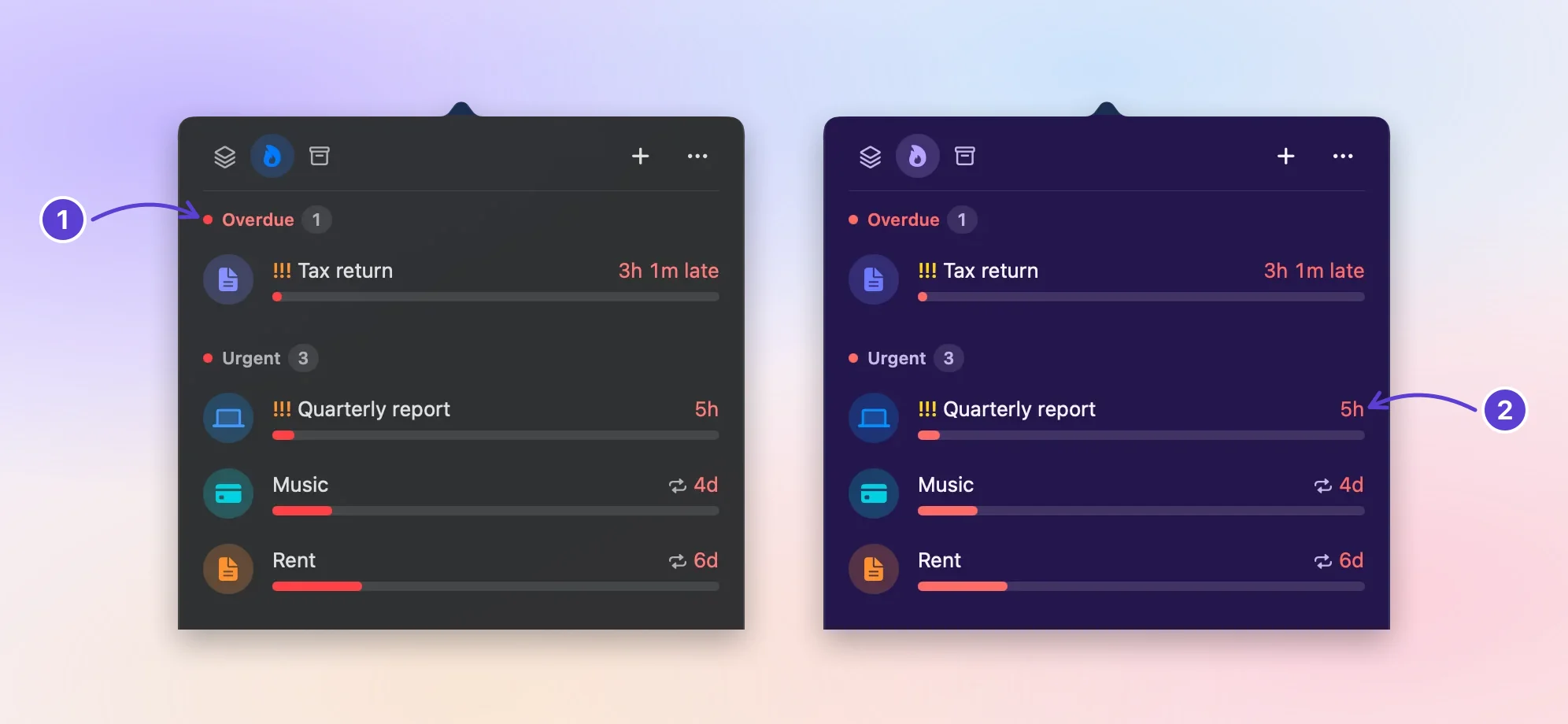
- Same sections, same order
- Colors keep their meaning
Try Pro, then choose a plan
You can try Pro before you pay. Yearly and Buy Once unlock the same Pro; only the way you pay differs.
- Try a Pro theme, with nothing to buy. Open Settings → Appearance, click Choose Theme…, pick a Pro theme, and click Try It. Your panel uses it for 3 minutes, then goes back to your theme. Try as often as you like.
- Open the plans. In Settings → About, click Upgrade to Pro…. The window lists Yearly (renews every year) and Buy Once (paid one time), with App Store prices for your country, in your currency.
- Pick Yearly to start with a free trial. Yearly renews every year until you cancel it in the App Store, and starts with 14 days free. Click Start Free Trial; eligibility and terms are on Apple’s purchase sheet, which you see before you confirm.
- Or pick Buy Once to pay one time and keep Pro. If you’ve already paid for a year of Yearly, Buy Once… in About offers it for less: the Buy Once price minus the year you paid, or Buy Once’s sale price when that’s lower.
- Confirm on Apple’s sheet. Deadline Bar welcomes you to Pro, and the limit is gone.
If you move from Yearly to Buy Once, turn Yearly off yourself. Apple keeps the yearly plan renewing, and would charge you again. Click Manage Subscription… in About and cancel it there; until you do, About says “Your yearly plan still renews. Turn it off so you aren’t charged again.”
On another Mac, or after reinstalling, Restore Purchases in About finds a plan bought with the same Apple Account. The guide to moving to a new Mac covers your deadlines too.
What you’ll see day to day
On Free, as you near five
The app doesn’t nag. The foot of the panel shows nothing while you have room, 4 of 5 deadlines at four, and 5 of 5 deadlines with a gold bar and Unlock More… at five. If you press Control-Option-D⌃⌥D with all five in use, the Deadline Bar Pro window opens in place of Quick Add, so you never type out a deadline that can’t be saved.
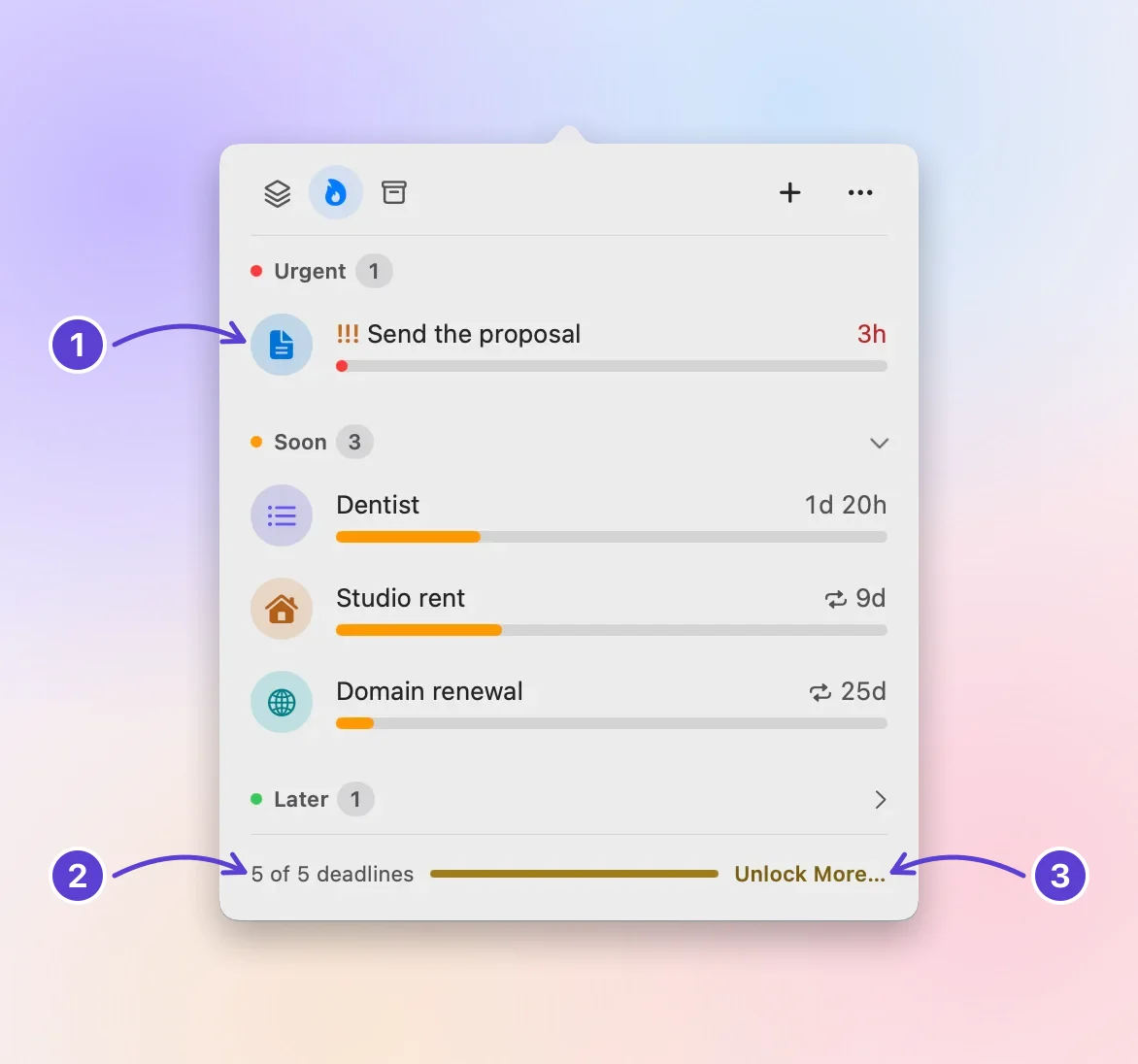
- Nothing added is blocked
- Five of five
- Unlock More… for Pro
On Pro
The footer no longer counts your deadlines, and Control-Option-D⌃⌥D always opens Quick Add. You can add groups of your own, choose any Focus length and rhythm, and use the Pro themes. Your deadlines, reminders, and repeats work exactly as they did on Free.
If Pro ends
Nothing is deleted when Pro ends. If a yearly plan or its trial ends while you have more than five deadlines, the app asks once how to go on. (If a renewal payment fails, Pro stays while Apple retries it during its billing grace period.)
The window is called Your Pro Has Ended, and it offers three choices:
- Unlock All… opens the plans. Buy again, and everything comes back as it was.
- Restore Purchases finds a plan already bought with the Apple Account on this Mac.
- Continue with Free shows Choose 5 to Keep Working On, with the five due soonest selected. Change the selection if you like, then click Keep 5 Deadlines. The panel opens with your choice applied.
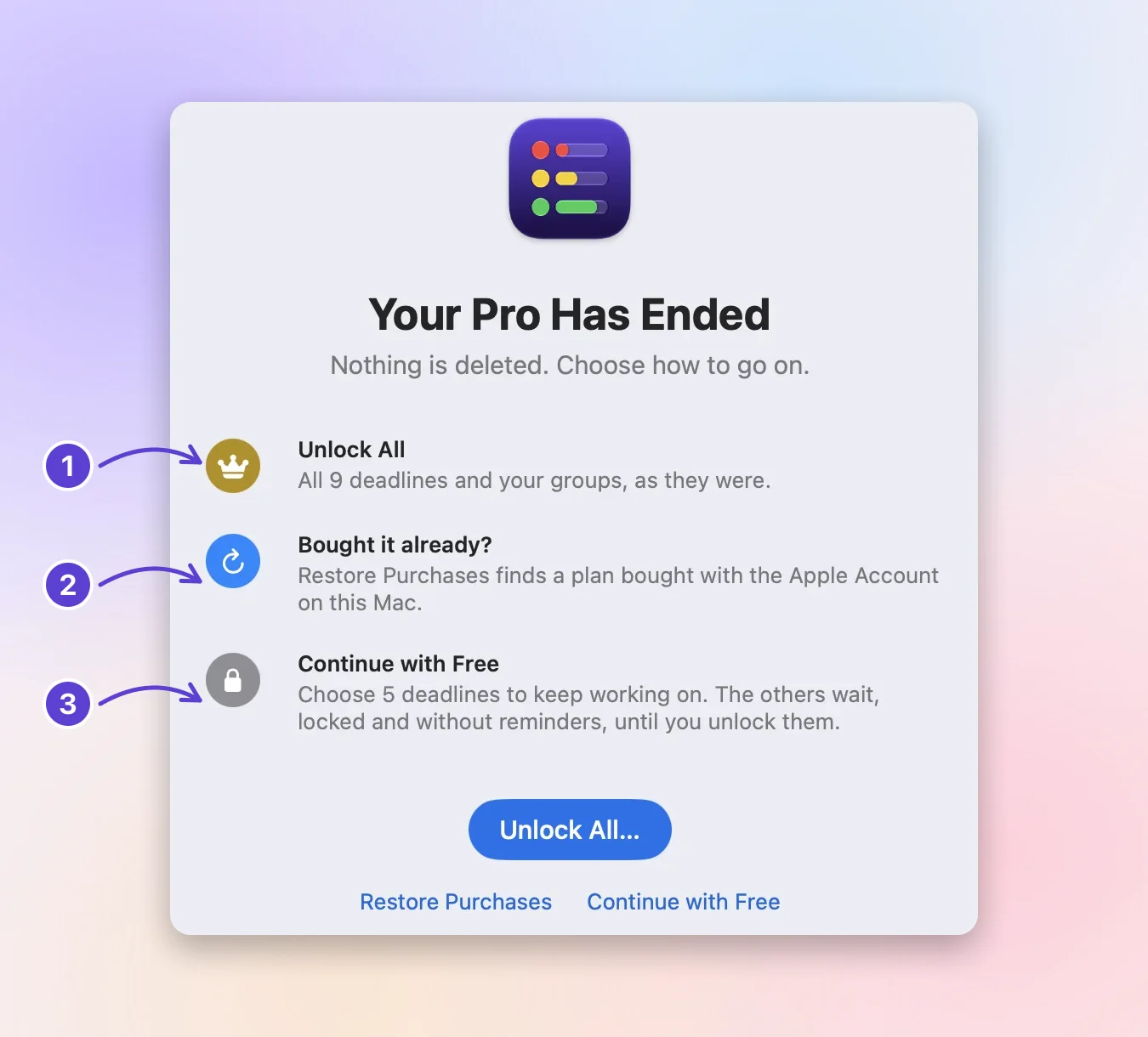
- Unlock All: everything back
- Bought before? Restore it
- Keep five, lock the rest
After you choose, the five you chose work as before, with reminders, repeats, Done, and Edit…. The others wait, dimmed, in a folded Locked section at the end of the list. You can open one to read it or delete it, but not change or finish it, and locked deadlines don’t send reminders or show in the menu bar. When you finish or delete one of your five, a place opens, and a locked row offers Unlock when you hover over it.
If you’d rather clear the rest out, Delete the Others… in the same window moves them to Recently Deleted, at the end of the Scheduled & History tab, where they stay for 30 days by default. On Free, you can put one back only while fewer than five deadlines are in use.
However many deadlines you have, a few other things change when Pro ends:
- Your own groups are kept, with their colors and defaults, but locked. Their deadlines show under Personal, the group for deadlines without one, and the footer says how many groups are kept.
- Items from Reminders and Calendar leave Deadline Bar. They stay in those apps and come back with Pro.
- A Pro theme goes back to your Free theme. Your choice is remembered for when Pro returns.
- Focus keeps working with the standard lengths and breaks; your own lengths and rhythms come back with Pro.
- Medals and the Pro Card leave About. The records they come from, your Completed list and Focus time, stay on this Mac.
Is Pro worth it for you?
Choose Pro if:
- you regularly have more than five things due at once;
- you want Focus sessions of your own length, with your own rhythm of breaks;
- you sort work by client, course, or project; or
- your deadlines already live in Reminders or Calendar.
Stay on Free if:
- you track a few renewals, bills, and dates;
- five open deadlines at a time cover your week; and
- seeing what’s due, being reminded, and the free Focus lengths are all you need.
Next step: add the deadline on your mind
Start on Free with the deadline you’re thinking about right now. The app tells you when five isn’t enough. The getting started guide takes you from that first deadline to your first Done.
Questions
Can I import more than five deadlines on Free?
Not all at once. Import… in Settings → General updates deadlines you already have and adds new ones only up to the places you have free. The rest stay in the file, so importing it again after you move to Pro brings them in.
How do I cancel the free trial?
Click Manage Subscription… in Settings → About, and cancel the yearly plan in the App Store. Cancel at least a day before the trial ends and you pay nothing. About shows the day your trial ends.
Does Pro sync my deadlines to my iPhone or another Mac?
No. Deadline Bar is Mac only, and Pro doesn’t add sync. Restore Purchases unlocks Pro on another Mac with the same Apple Account, but your deadlines move only by export and import.
Trademarks belong to their owners; Deadline Bar isn’t affiliated with them.
Start with Free, and choose Pro when you need more
See your deadlines in your Mac’s menu bar, colored green to red as time runs out, and choose what to do next.

Read next
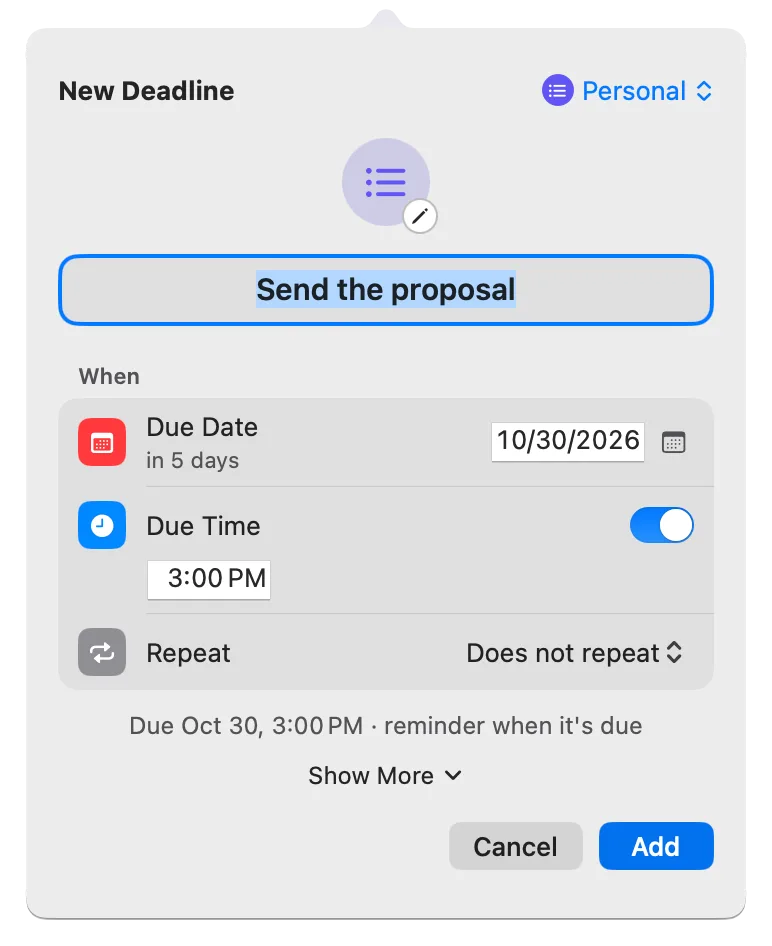
Get started with Deadline Bar: add your first Mac deadline
Press Control-Option-D, give your first deadline a day and a time, and watch it count down in the menu bar. Then set a reminder, finish it, and see what’s free.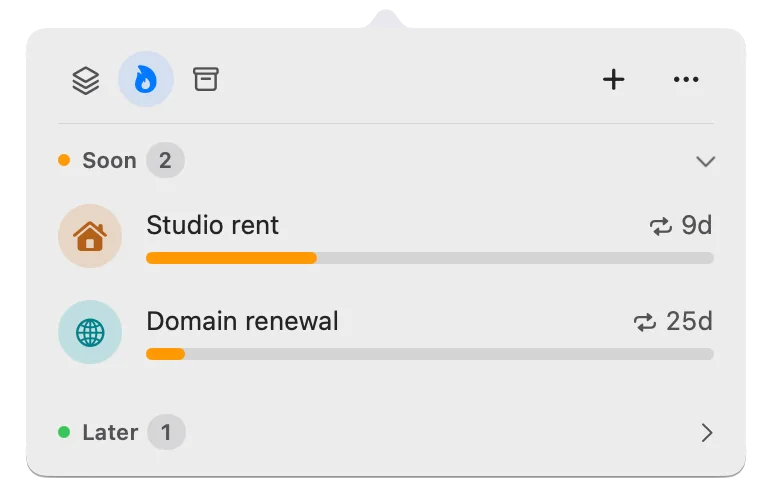
Start dates in Deadline Bar: hide work until you can begin
Give a deadline a start date and it waits in Scheduled, out of your list and menu bar, until that day. Set or move a start, begin early, and read time left.